
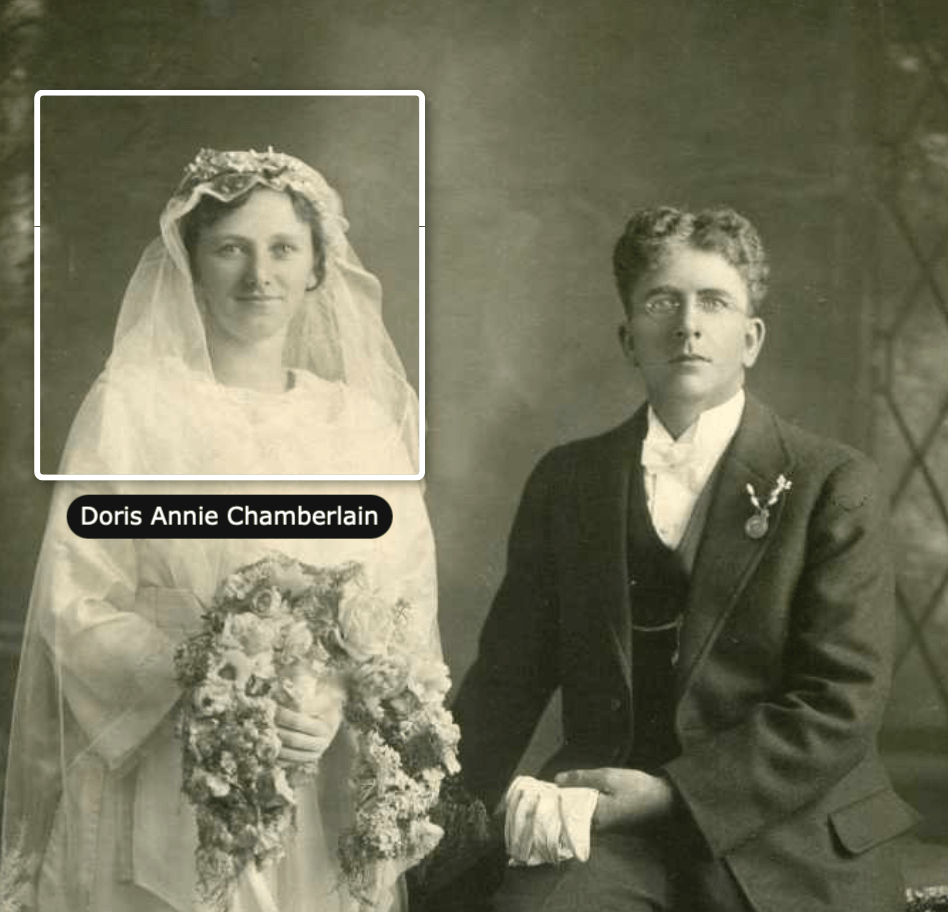
If your photo, document or story involves more than one person, you can add tags for them all. It will then appear in the Memories section for all the tagged people.
For example
- a wedding photo might be tagged with the bride, groom and attendants
- a newspaper notice may mention several people
Tag another person
Sign in to FamilySearch and find the person either by navigating through the tree or searching for them.
Click on Memories, choose the item to be updated, then click on the photo or document to tag more people.
Resize and reposition the tag to be placed over the person’s face or name where possible.
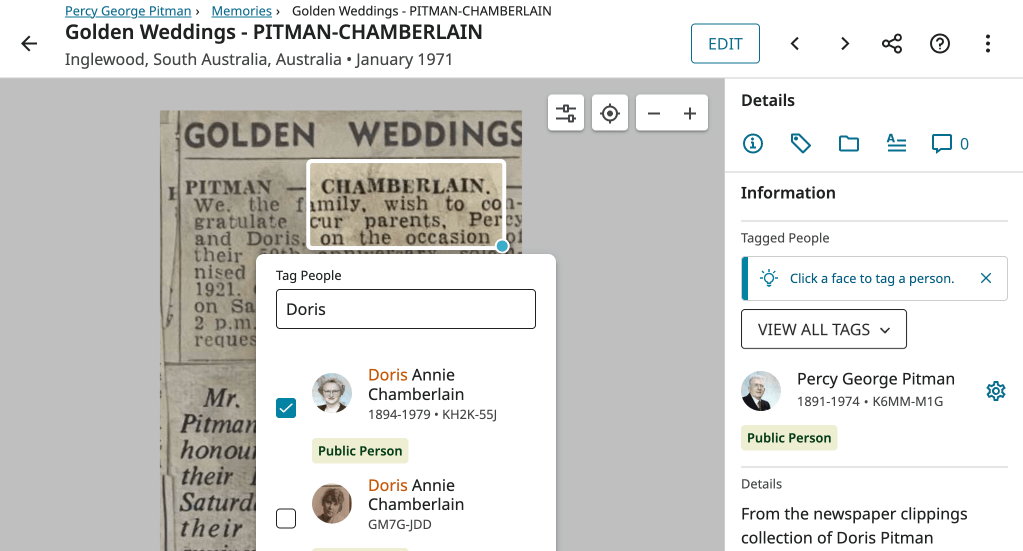
To tag the person, start typing the name of the person in full.
As you type, the person’s details may appear in a dropdown list (eg if you have recently visited their page). If this is the correct person, tick them to add the tag.
If no entries appear in the dropdown list or they are not the correct person, you will need to:
- Type their name in full and click Add New
- Click on Attach to Tree
- Enter the person’s ID if you know it or click Search Family Tree
- Search for the person using as much information as you know, and, once you have found the correct record, click Select to attach
To change or delete an incorrect tag
If you have accidentally tagged the wrong person and need to remove the link
- Click on the cog to the right of their name
- Click Delete
To move a tag to a more suitable location
- Click on the person’s name in the list of tags
- Click on the tag that is displayed
- Drag the tag to the correct location or resize as needed.
Tip: Other people can add tags to your memories. If you want to monitor changes made by others, use the Following option.
 Pitman Families in Australia